
Ollama
Dan Sharp
Posted 12 November, 2024 by Dan Sharp in
Ollama
Configuration > API Access > AI > Ollama
To connect to the Ollama you will need to download and install the LLM on your machine locally.
Once the set up is installed, you’ll need to download the model you wish using a command prompt or terminal, such as ollama run llama3.1.
This requires a powerful modern machine.
Once installed, click ‘Connect’ on the Ollama Account Information tab. The Server URL field can be left as it is (http://localhost:11434).

Navigate to the ‘Prompt Configuration’ tab, to set up up to 100 prompts against crawl data.

Select the category of model (Chat Completion or Embeddings), the Ollama model used (for example, ‘llama3.1’), content type and data to be used for the prompt, such as body text, HTML, or a custom extraction, as well as write your custom prompt.
Please note: To use ‘Page Text’ or ‘HTML’ for the prompt, you will need to enable ‘Store HTML‘ via ‘Config > Spider > Extraction’.
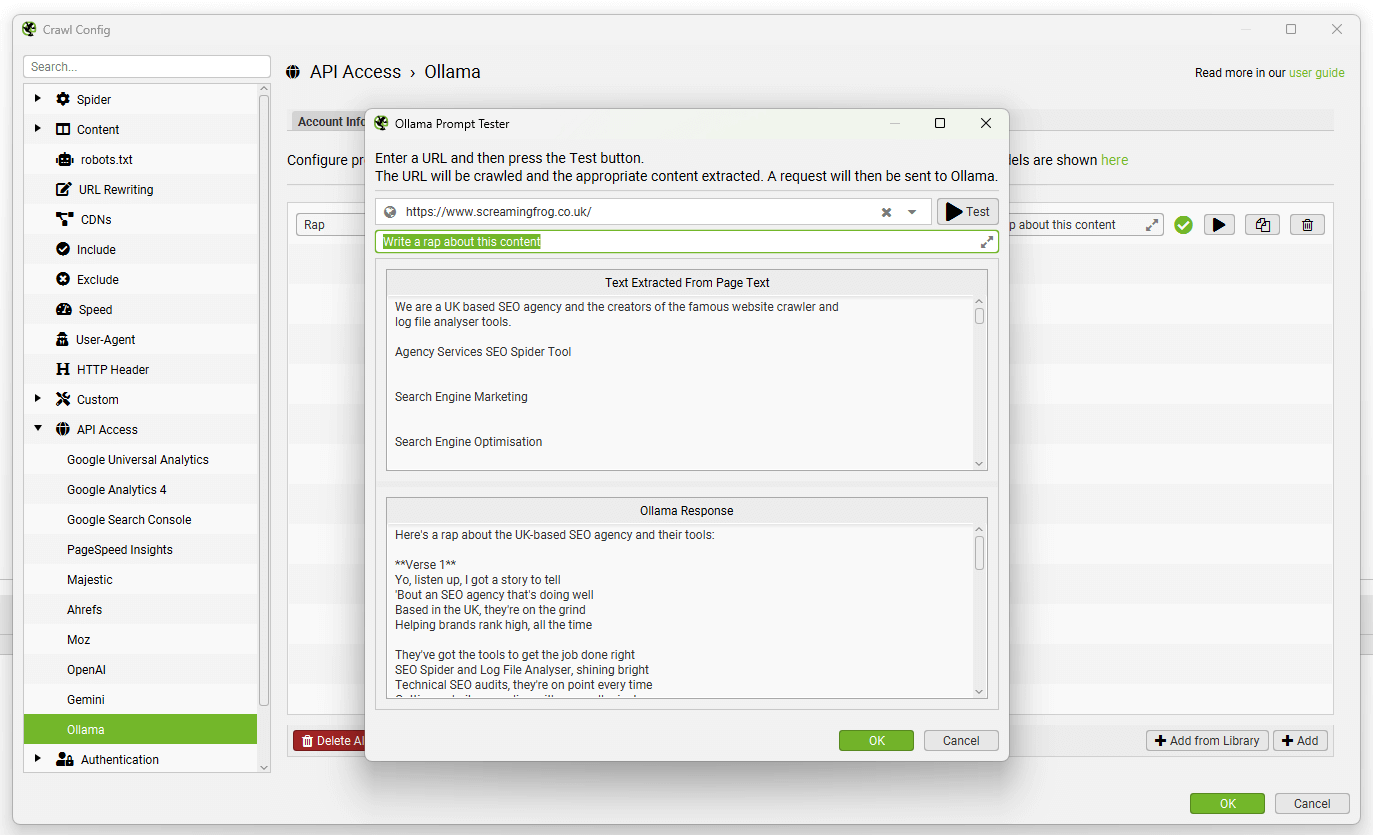
To test a prompt, use the ‘play’ icon to the right of the prompt field.

In the Ollama prompt tester, input the URL to test and click the ‘Test’ button to display both the extraction, and response.
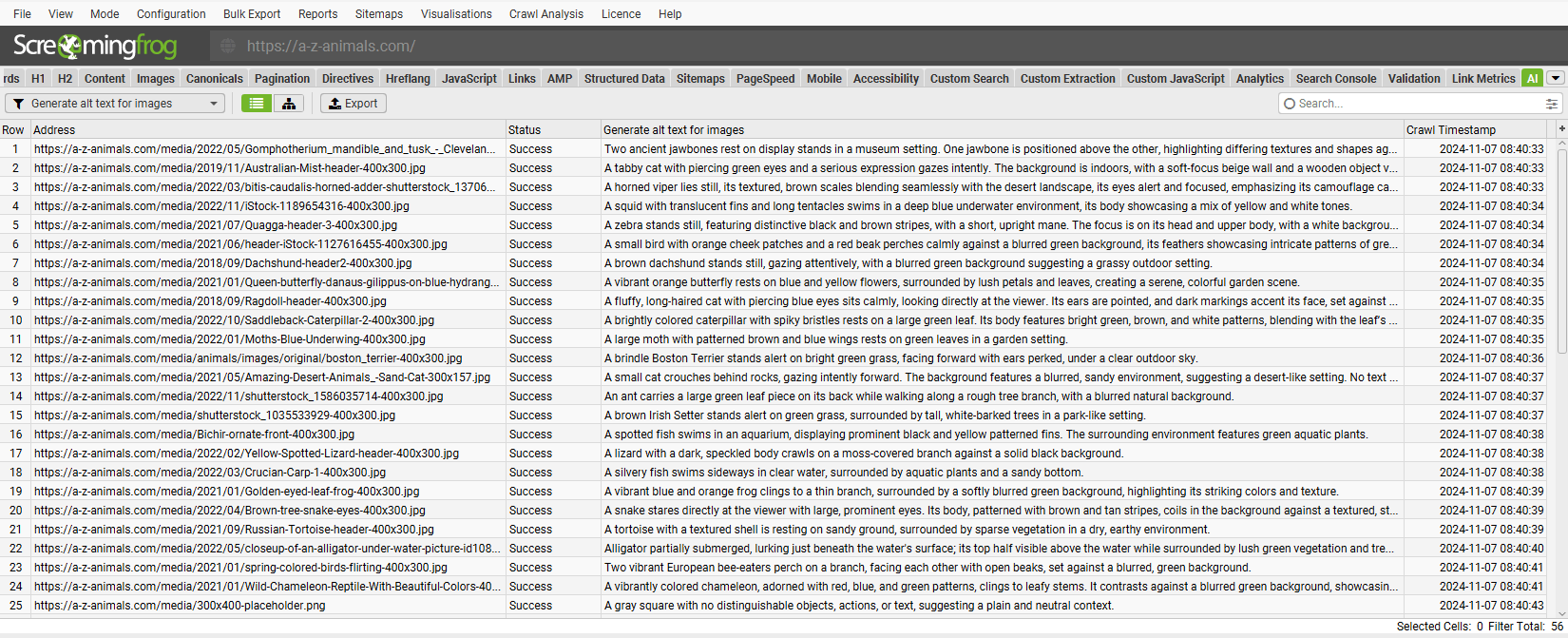
Data from the prompt will appear in the AI tab (and Internal tab, against your usual crawl data).
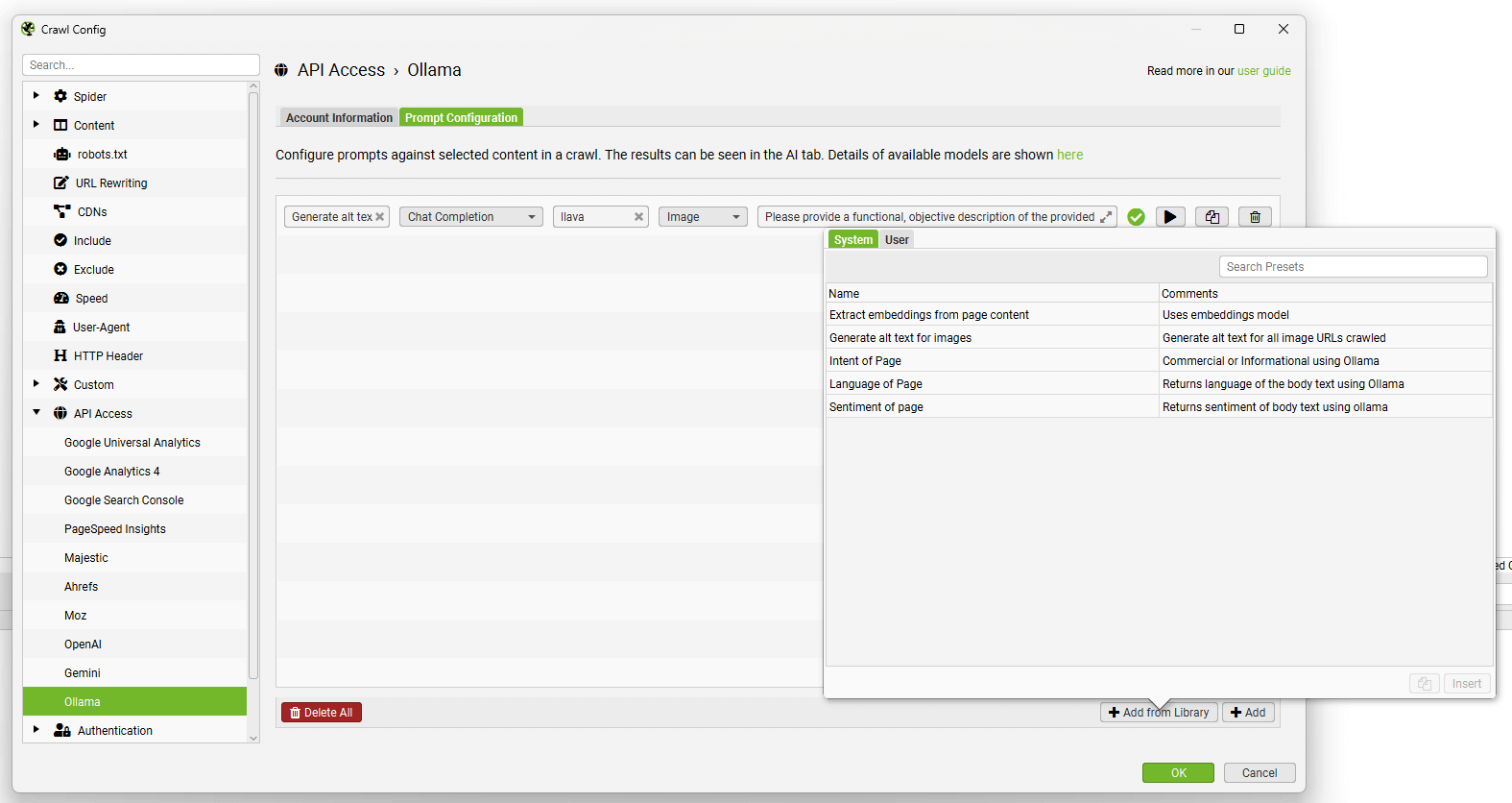
The ‘Add from Library’ function includes half a dozen prompts for inspiration.
You’re able to add and customise your own using the ‘Add from Library’ button, clicking ‘User’ and the ‘+’ button.
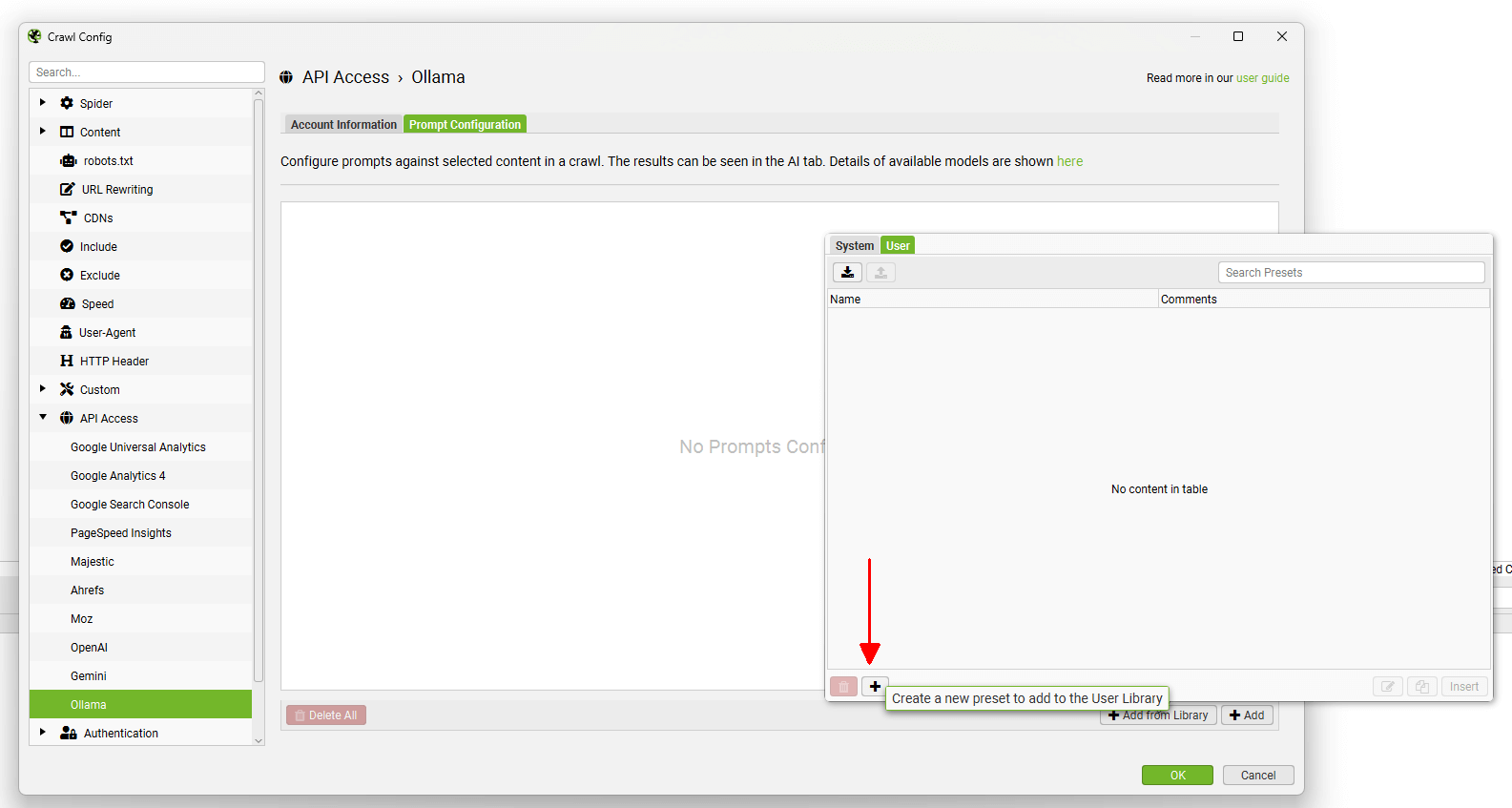
Custom prompts can be shared using the export and import buttons at the top.
Read our full tutorial on How To Crawl With AI Prompts.